
Creating a POP3 Email Account in Mozilla Thunderbird

1. Open your Mozilla Thunderbird

2. Go to Tools > Account Settings

3. Click "Create a new account"
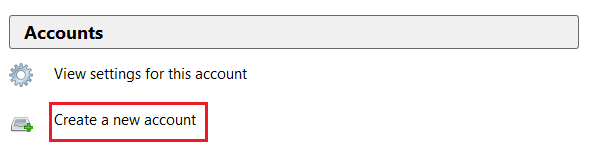


4. Choose "Skip this an use my existing email"

5. Enter Your Name, full Email Address and password , click "Continue".
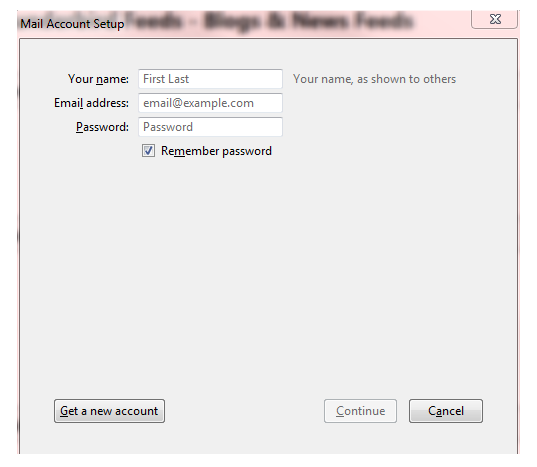
6. At Mail account setup configure screen,choose manual config



7. Select the type of incoming server : POP3

Enter the name of your incoming and outgoing mail server: mail. (enter your domain name) with Port number 110.

8. The username would be your full email address such as username@yourdomain.com



9. Click on "Re-test" the configuration and Click "Done".

10. Back to your Thunderbird main menu and go to Outgoing Server and confirm your Outgoing SMTP server.


11. Check the "Use name and password" box and assign your email account to the User Name and select "No" for Use secure connection.

12. You may start using Thunderbird by clicking on the top left "Get Mail" button.

  • 0 Users Found This Useful
Was this answer helpful?

Related Articles

How to setup POP3 Email Account in iPad

This article will guide you on how to setup POP email account from iPad. 1. If this is the first...

How to setup POP3 Email Account in iPhone/iPod Touch

This article will guide you how to setup POP3 email account from iPhone/iPod Touch. 1. If this...

How To Get Full E-mail Header in Outlook Express, MS Outlook, Mozilla Thunderbird, Windows Live Hotmail, GMail, Yahoo! Mail, and Apple Mail

In order to get Full E-Mail Header from major free email provider and E-Mail Client(Microsoft...

How to setup POP3 Email Account in iPhone iOS7

Email accounts setup for iPhone (SMTP/IMAP/POP3)Please follow this step-by-step instruction in...

How to setup POP/IMAP Email Account in Android (KitKat)

Follow the guide below to set up POP/IMAP email on an Android device.Step 1: Go to "Apps".Step 2:...

Powered by WHMCompleteSolution