
Here's a quick guide to setting up Gmail to check your email from other accounts:
Log into Gmail:
Go on your computer and sign into your Gmail account.
Access Settings:
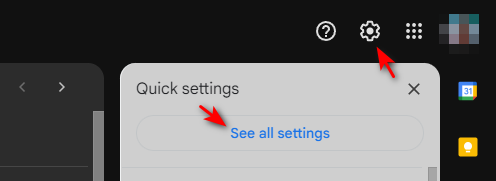
In the top right, click on the gear icon, then see all settings.
Go to Accounts and Import:
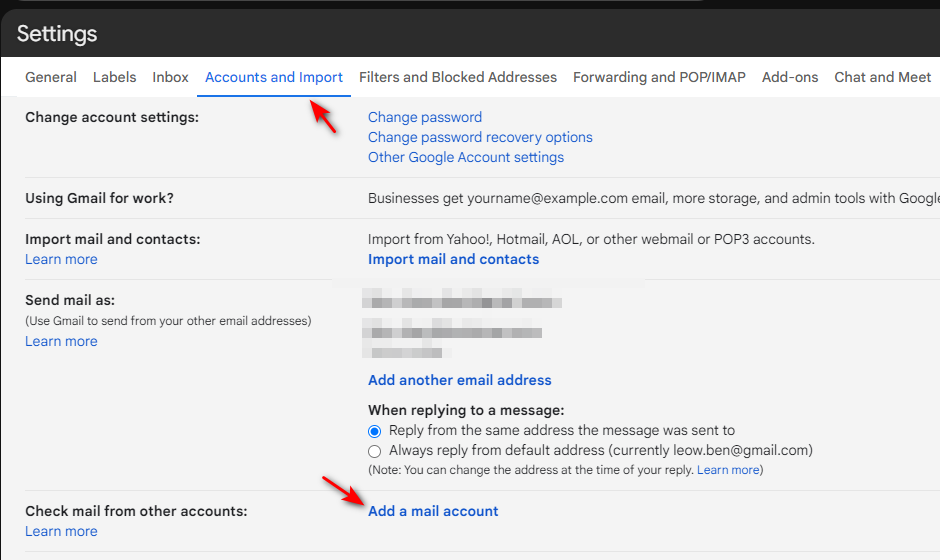
Click on the "Accounts and Import" tab.
Check mail from other accounts:
Find the "Check mail from other accounts" section and click "Add a mail account."
Enter your email details:
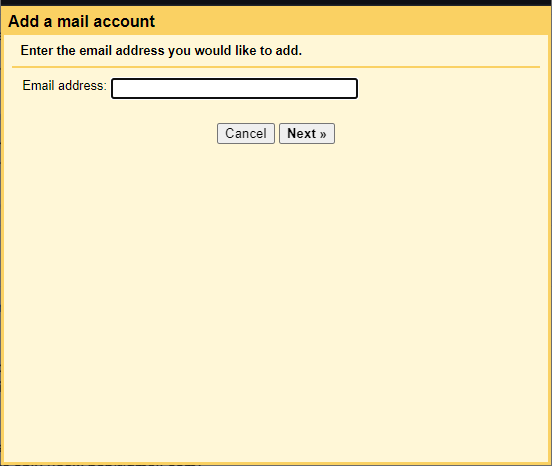
Type in the email address you want to add, then click "Next."
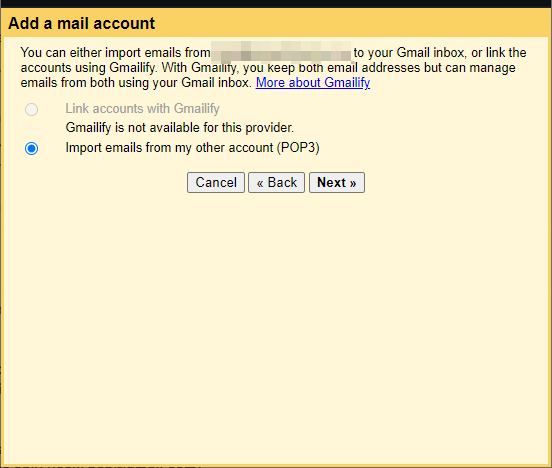
Choose "Import emails from my other account (POP3)" and hit "Next."
Fill in the details:
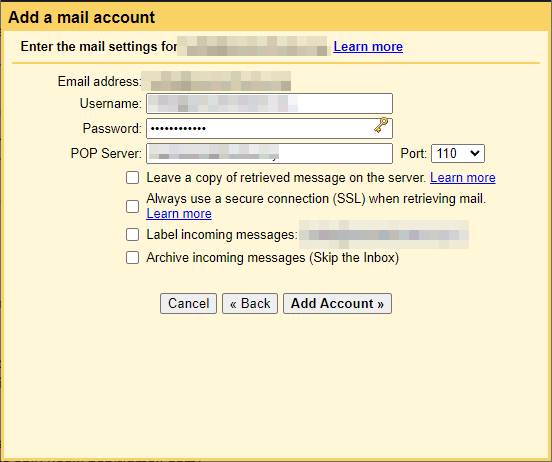
Enter the username (your full email address), password, POP server (e.g. mail.yourdomain.com), and port (110). Do not select the option of using a secure connection (SSL) when retrieving mail if using port 110.
Check the options that suit you best, like leaving a copy of retrieved messages on the server, label incoming messages or archive incoming messages.
Finish up:
Click "Add Account." If you want to, you can also set it up to send mail as this account from Gmail.
Verification:
You might need to verify the email address. Follow the instructions sent to your email if prompted.
And that's it! Gmail will now check your other email accounts and bring emails into your Gmail inbox. You can adjust settings or add other accounts as needed.
