
In order to enabled SSL encryption in your Outlook 2007, kindly refer instruction and screen shot.
*** This KB only applicable for Dedicated Server customer who has purchase SSL to be installed on their server AND EBiz Platinum Hosting package.
1. Launch your Microsoft Outlook 2007
2. Go to Tools and select Account Settings.
3. Check on the "Manually configure server settings or additional server types"
4. Enter your name and full email address on User's Information section.
5. Select Account Type. You may choose either POP3 or IMAP as we support for both email protocol.
6. Enter mail.domain.com for incoming and Outgoing mail server (SMTP) mail.domain.com
*** For users signing up our Ebiz Platinium Windows package, please refer to the welcome email for further details.
*** For dedicated server user, please refer to the instruction given by our technical support personnel on the SSL installation on your server.
7. Then assign your full email address and password on the Logon information section and check on to remember password
8. Then click on the "More settings..."
9. Then go to advanced tab and check on "This server requires an encrypted connection (SSL)."
10. Lastly assign 995 for incoming port (POP3) and 465 for outgoing port (SMTP).
In order to enabled SSL encryption in your Outlook Express, kindly refer instructions and screenshot.
1. Launch Outlook Express.
2. Go to Tools > Accounts...
3. Go to Mail tab and select the account for SSL encryption and click Properties.
4. Then go to Advanced tab and check on both "This server requires a secure connection (SSL).
5. Then assign port 465 for outgoing SMTP and 995 for incoming POP3 as below screenshot.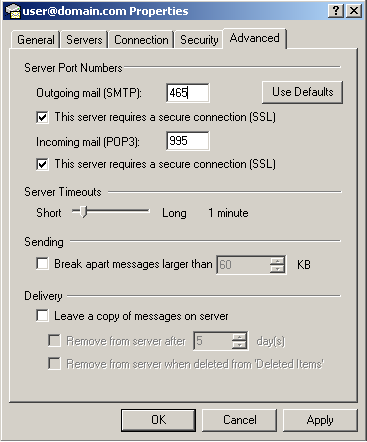
- 3 Users Found This Useful
Related Articles
Powered by WHMCompleteSolution
